
From 2D screens to multi-dimensional experiences, UX design is evolving. Spatial design — across AR, VR, and mixed reality — isn’t just about technology. It’s about anchoring digital content meaningfully into human environments.
Table of Contents
- What Is Spatial UX Design?
- Understanding the User’s Physical Context
- Designing for Comfort, Movement, and Scale
- Natural Interactions & Onboarding
- 2D vs 3D Interfaces: Blending UI Types
- Strategic UI Anchoring
- Sensory Feedback & Environmental Cues
- Spatial Layouts, Visual Hierarchy & Readability
- Design in Physical Contexts
- Interaction Affordances & Intuitiveness
- How to Design Spatial Interfaces
- Platform Guidelines & Best Practices
- Future of UX is Spatial
1. What Is Spatial UX Design?
Spatial UX is the discipline of designing user experiences where digital content exists in 3D physical space. This includes:
- AR (Augmented Reality): Overlays digital content on the real world.
- VR (Virtual Reality): Creates fully immersive digital environments.
- MR (Mixed Reality): Allows interaction between digital and physical elements.
Unlike flat UIs on screens, spatial interfaces adapt to the user’s body, vision, and surrounding context. Buttons may float at eye level, menus can follow your gaze, and audio may spatially guide you toward off-screen content.
2. Understanding the User’s Physical Context
In AR:
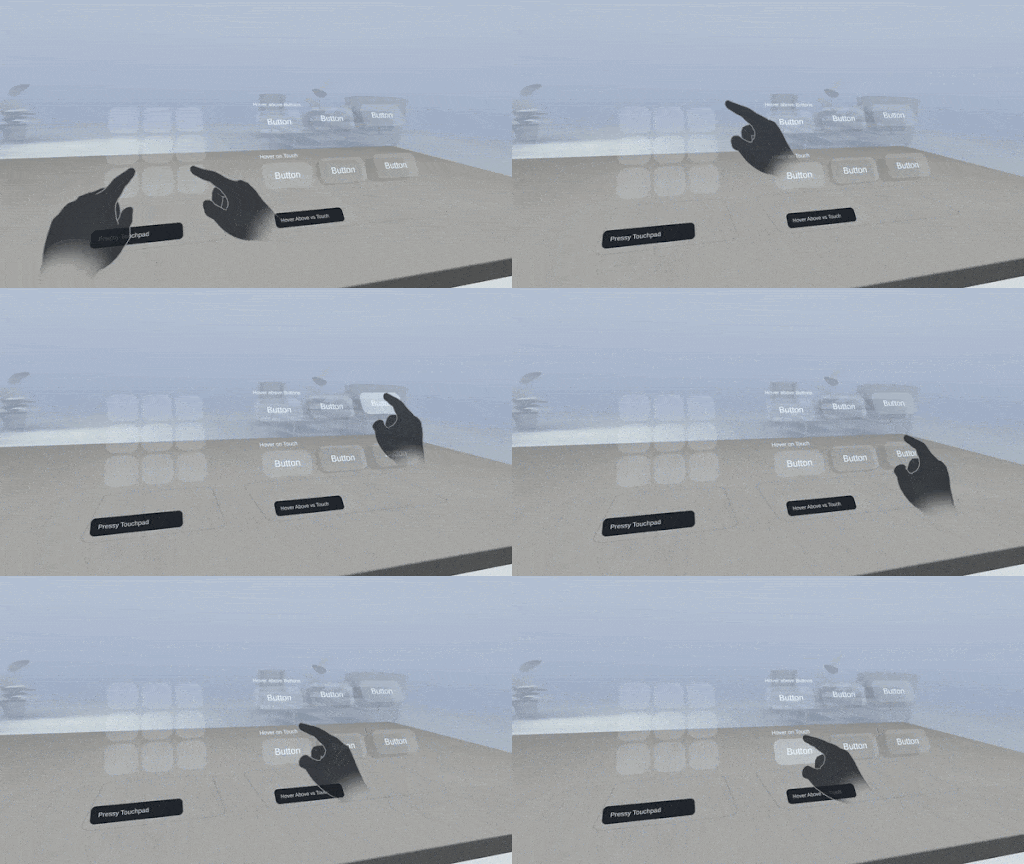
- Environment Matters: Lighting, surfaces, and clutter affect AR accuracy.
- Space Constraints: Indoor/outdoor scenarios vary dramatically.
- Flexibility: UI should adapt to user movement and surroundings.
In VR:
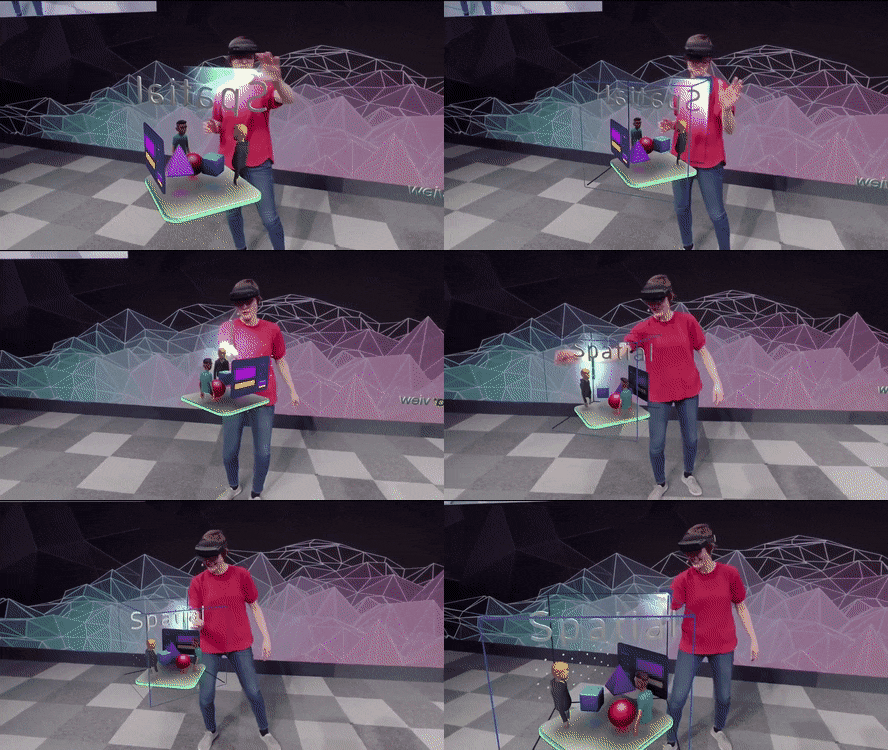
- Comfort Zones: Keep UI within 60° of a user’s forward view.
- Head Movement: Avoid interactions that require repeated neck twisting or awkward angles.
3. Designing for Comfort, Movement, and Scale
Levels of Interaction
Design for different spatial scales:
- Table-scale: Close-range interactions (e.g., AR manuals, models).
- Room-scale: Walkable interactions (e.g., VR sculpting).
- World-scale: Large navigation spaces (e.g., open-world VR/AR exploration).
Comfort First
Microsoft HoloLens: The Science Within — Spatial Sound with Holograms
- Use spatial audio, visual indicators, or fading trails to gently guide attention.
- Avoid fast transitions or surprise UI elements.
4. Natural Interactions & Onboarding
Mimic the Real World
- Use drag physics, shadow feedback, and realistic gestures.
- Integrate eye tracking, voice input, or hand gestures depending on the device.
Smart Onboarding
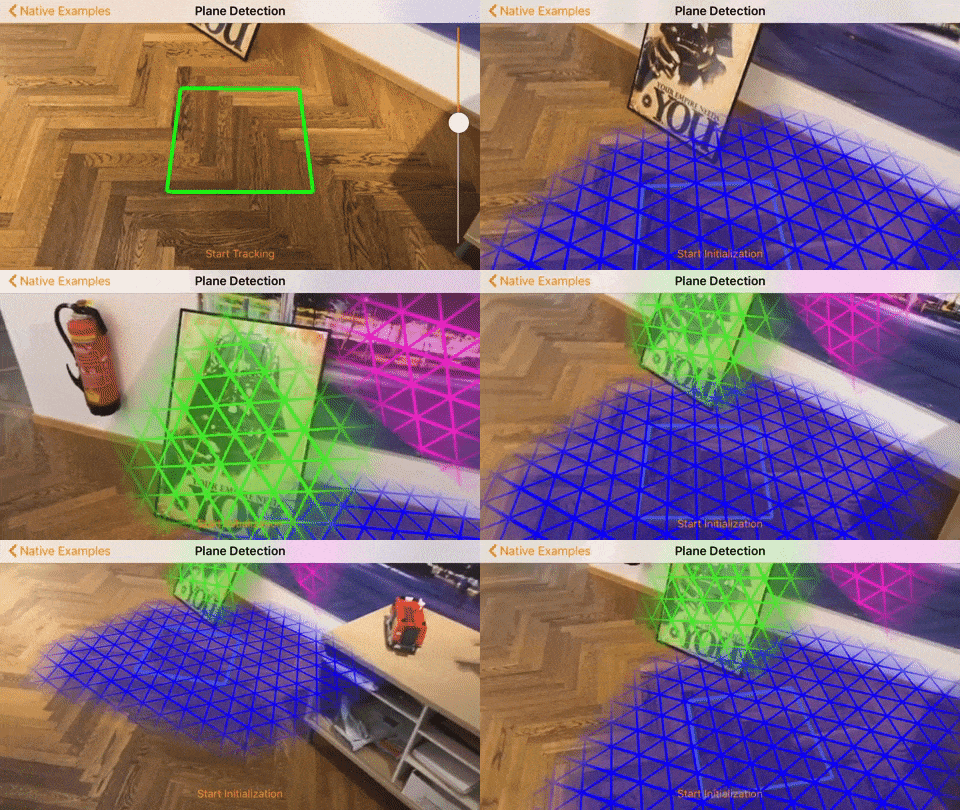
- In AR: Animate surface detection to visually reassure the user.
- In VR: Use quick guided walkthroughs to teach gaze or gesture interactions.
5. 2D vs 3D Interfaces: Blending UI Types
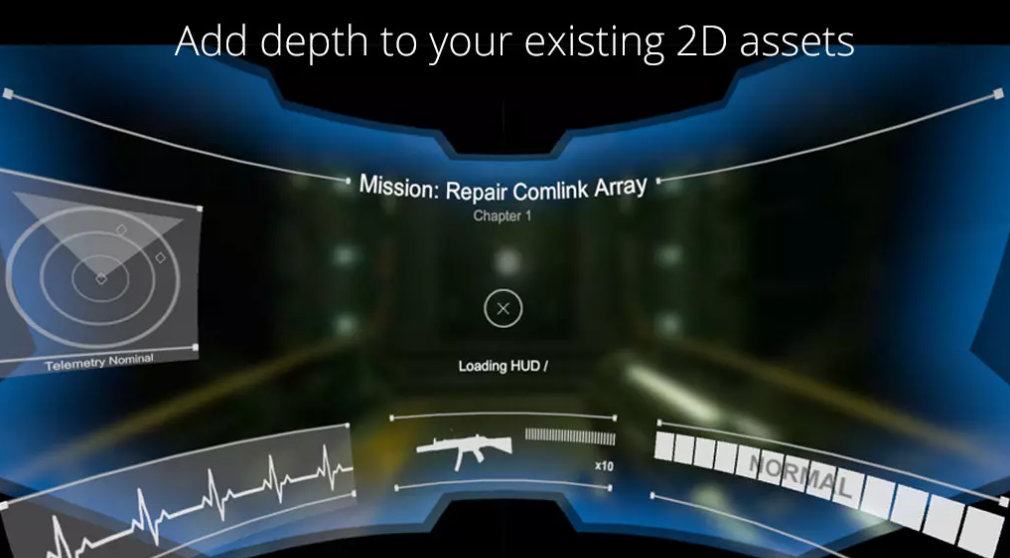
Spatial UIs should not mimic 2D screens. Instead:
- Minimize flat panels.
- Use curved UIs to match the user’s visual arc.
- Place interactive elements within a natural reach zone (roughly arm’s length).
- Embed UI into the spatial world rather than layering on top.
6. Strategic UI Anchoring
There are two primary ways to position UI in AR/VR:
- World-Anchored UI: Panels fixed in the environment (e.g., next to machines, on walls).
- Body-Anchored UI: Menus on wrist, shoulder, or following gaze (e.g., wearable tools).
Use head-locked UI for transient alerts. Transition into anchored UI for tasks requiring stability or context.
7. Sensory Feedback & Environmental Cues
Design interactions that involve multi-sensory feedback:
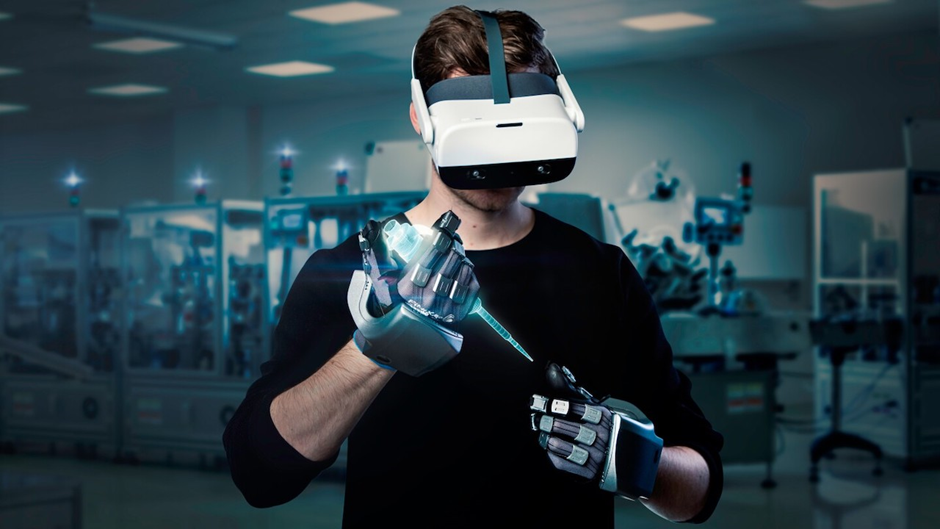
- Spatial audio directs users to off-screen cues.
- Haptics (vibration) reinforces actions on controllers or gloves.
- Lighting/reflectivity should mimic real-world physics.
Feedback should always feel relevant and grounded in user expectations.
8. Spatial Layouts, Visual Hierarchy & Readability
Spatial Layout
Use Z-depth to your advantage:
- Foreground: Core interactive content.
- Midground: Supporting data.
- Background: Ambient visuals or non-urgent notifications.
Readability Rules
- Use bold, legible fonts.
- Design with distance-independent units (like dmm) to preserve scaling.
- Avoid fine print — especially in VR.
- Follow platform recommendations (Apple ≥ 17pt, Meta ≥ 0.5m view distance).
9. Design in Physical Contexts
Ergonomic Zones
- Intimate (20–40cm): Glasses HUD, facial input.
- Personal (0.5–1.2m): Tools, object interactions.
- Social/Public (>1.5m): Shared content.
Occlusion Awareness
Design for what might block your content — like tables, walls, or other users.
10. Interaction Affordances & Intuitiveness
Make it obvious how to interact:
- Buttons should “pop” with depth, lighting, or hover glows.
- Use 3D cues (e.g., shadow under sliders or grab handles).
- Provide fallback inputs (gesture + voice + controller) for accessibility.
11. How to Design Spatial Interfaces
To create a compelling spatial interface, follow a layered approach:
Step 1: Define the Use Case
- Is it a VR factory simulator or an AR shopping assistant?
- What’s the physical environment — desk, room, or field?
Step 2: Storyboard Spatial Interactions
Sketch key moments from the user’s perspective: how they enter, look around, interact, and exit.
Step 3: Create a 3D UI Layout
Use depth and spatial zones:
- Primary actions within arm’s reach
- Reference content off to the side
- Notifications slightly above or below eye level
Step 4: Prototype & Test in Real Devices
Use tools like Unity + MRTK, Apple Vision Pro Simulator, or Meta Presence Platform to test spatial positioning and comfort.
Step 5: Prioritize Usability Over Novelty
Avoid flashy 3D effects that hinder usability. Clarity > complexity.
Step 6: Iterate with Real-World Feedback
Test with users in different lighting, space sizes, and physical conditions. Optimize for accessibility and fatigue.
12. Platform Guidelines & Best Practices
Apple (VisionOS)
- Focus: Depth, gaze input, glass-style UI
- Guidelines: Apple VisionOS Human Interface Guidelines
- Emphasizes layered depth, translucency, and spatial layout
- Teaches designers to use natural inputs like eye-tracking and hand gestures
Meta (Quest)
- Focus: Hand tracking, spatial anchors
- Guidelines: Meta XR Interaction SDK & Spatial Anchors docs
- Spatial Anchors enable persistent, world-locked content XR SDK
- Supports grab, poke, two-handed interactions — natural touch mechanics
Microsoft (HoloLens + MRTK)
- Focus: Gaze and gesture input
- Guidelines: Microsoft Mixed Reality Toolkit (MRTK)
- Combines eye-tracking and hand gestures for selection/navigation
- Supports both head-gaze (HoloLens 1) and eye-gaze + air‑tap (HoloLens 2)
Google (ARCore)
- Focus: Surface detection, motion tracking
- Guidelines: Google ARCore Design Patterns
- Detects horizontal/vertical planes and highlights valid surfaces
- Core capabilities: motion tracking via VIO, environmental understanding, and light estimation
NVIDIA (Omniverse + Spatial AI)
- Focus: Real-time simulation, digital twins
- Guidelines: NVIDIA Omniverse platform docs & Spatial AI blog
- Uses OpenUSD + RTX rendering for accurate 3D world-building
- Blueprints and generative AI accelerate spatial workflows for simulation and robotics
13. Future of UX is Spatial
As we shift from touching screens to interacting with environments, UX designers become world-builders. Designing for AR/VR/XR is about creating presence, not just functionality.
Final Tips:
- Always test in the actual headset.
- Keep UI elements within natural reach.
- Use curved panels to match vision arc.
- Design for accessibility, comfort, and clarity.
- Think of UI as part of the story, not just control surfaces.
14. Further Learning Resources
Learn More:
- Apple VisionOS Design Guide
- Microsoft MRTK Toolkit
- NVIDIA Omniverse
- Google AR UX Patterns
- Spatial UI Android XR
- Meta Horizon OS UI
- Goldenflitch Spatial UI Guidelines
Watch:
- Intro to AR/VR UX Design (YouTube)
- Learn Spatial Design — Case Study Step by Step
- Designing for the Future: Mastering Apple’s Spatial UI
- 10 Spatial Design Principles: The Why, What, and How
15. Final Thoughts & Future Outlook
The future of UX is spatial, multi-sensory, and deeply contextual. As designers, we’re no longer just arranging pixels on screens — we’re orchestrating presence, behavior, and emotion in space.
Success in AR/VR/XR means blending:
- Design systems with spatial logic
- Psychology with gesture fluency
- Real-world awareness with digital imagination
“In spatial UX, your canvas is not a screen — it’s the entire environment.”

Designing for Spatial UX in AR/VR: A Beginner-to-Advanced Guide to Immersive Interface Design was originally published in UX Planet on Medium, where people are continuing the conversation by highlighting and responding to this story.