AI BASICS
How AI “remembers”, and what it means for you as a builder — Part 1
How context works and why it matters: an introduction for designers and developers
Your aim as a builder designer or developer is to learn how to provide context in a way that lets the AI model maximize its efficiency (context engineering). By using as little and as relevant context as possible, you help the model better focus on the given task.
In this article, we are going to cover how context works, what influences GenAI apps’ performance, what tokens are, and how context grows with each prompt and response.
The Illusion of Having a Conversation: How AI Actually Works
In this part, we’ll talk about these:
- what makes an LLM perform better
- what hallucinations are
- a feature that allows AI to remember things across conversations
- the size limit of your conversation with the AI
GenAI tools like ChatGPT, Claude, and GitHub Copilot all use Large Language Models (LLMs) under the hood. These LLMs process an input (this is the context) and predict a response as their output (a human-readable text message or a tool use). (There are multimodal LLMs that can understand and work with multiple types of input and output formats (not just text, e.g. images, audio, video), but to make this article a bit simpler, we’ll concentrate on textual inputs and outputs.)
Context is all the information the AI gets when generating a response, this includes e.g. the chat history, the system prompt, the user preferences, the tool result messages, any uploaded files. We’ll talk about these building blocks later.
Performance
The performance of LLMs depends on 2 factors:
1. How large the model is. Larger models have more parameters, which generally means better reasoning capabilities and more nuanced responses. But there’s a trade-off: bigger models cost more to run and take longer to generate responses.
2. How much relevant information reaches the model through
- its training data and
- the context you provide.
When crucial pieces are missing, LLMs start making things up, this is what we call “hallucination.”
The easiest fix? Provide more relevant information in your context.
Hallucination
During training, LLMs process massive datasets (e.g. books, websites, code repositories), learning patterns and relationships between concepts. But they only know what existed before their so-called training cutoff date.
Its knowledge is also general, by default it has no awareness of information specific to your project, your codebase, or your organization. Need to use a library released last month? Want to follow the latest best practices? The model has never seen them. Unless you explicitly include that information in your context, the LLM will work with outdated knowledge or hallucinate answers based on similar patterns it learned during training.
Hallucination isa misleading term. AI is designed to predict the next tokens based on patterns, not facts. AI is “hallucinating” when it generates plausible-sounding but inaccurate things, since it’s predicting, not retrieving facts.

“GPT‑5 has significantly fewer hallucinations especially when reasoning, but they still occur. Hallucinations remain a fundamental challenge for all large language models, but we are working hard to further reduce them.” (Source)
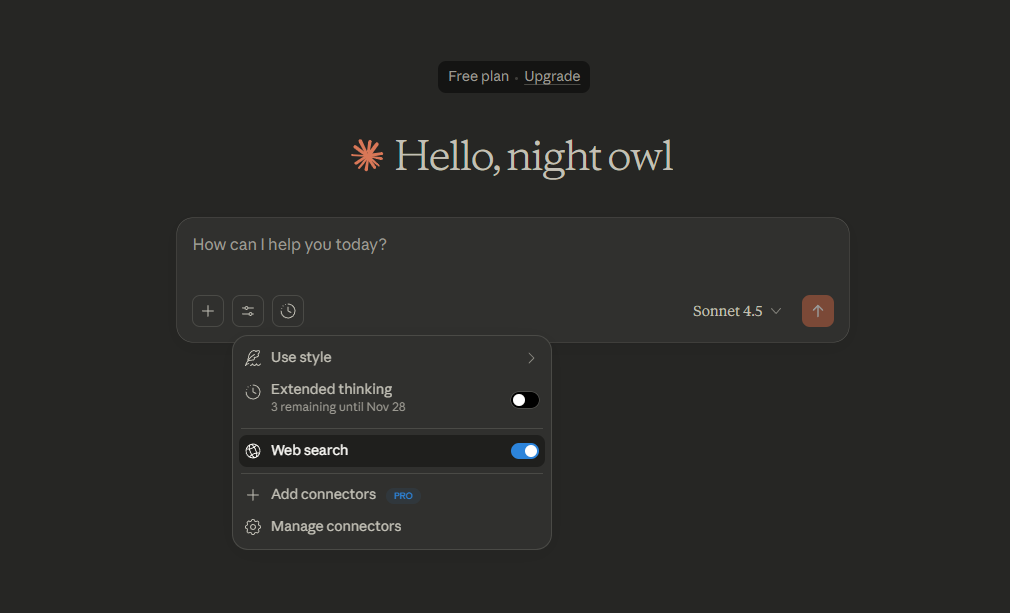
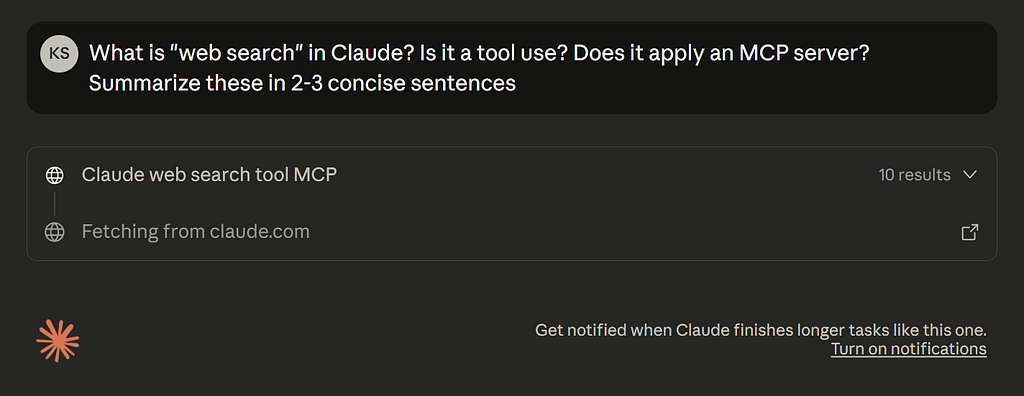
It is also possible to use the so-called “web search”, this gives real-time web search capabilities to AI assistants.

Remembering across conversations
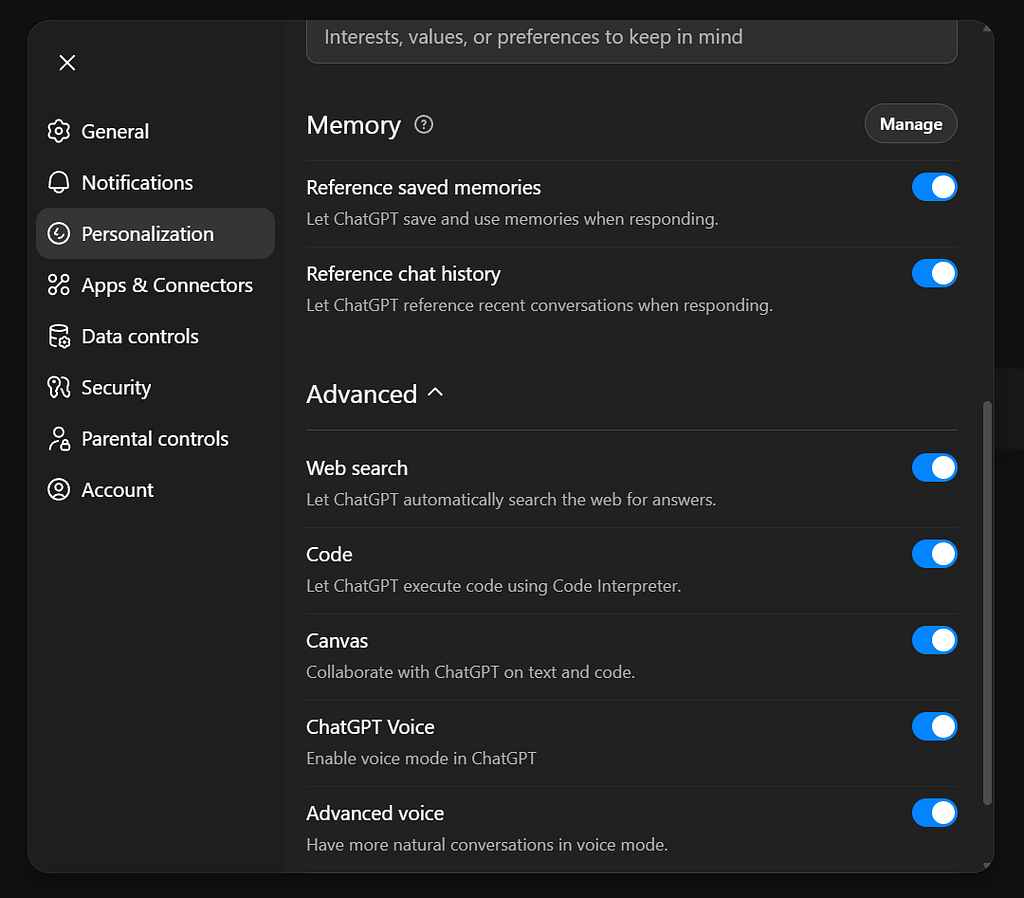
LLM doesn’t remember your previous messages like we remember conversations. Instead, it receives the entire conversation history as fresh input each time and generates its response by predicting what would make sense next. However, several GenAI apps have now “memory features” meaning that it can “remember” things across conversations, so that you don’t have to re-explain everything each time. Usually it is implemented in a way that users have control over this, they can decide whether they want this memory feature or want a clean slate. Here are some examples:
For instance, this is how ChatGPT’s memory works:
“ChatGPT can remember useful details between chats, making its responses more personalized and relevant. As you chat with ChatGPT, whether you’re typing, talking, or asking it to generate an image, it can remember helpful context from earlier conversations, such as your preferences and interests, and use that to tailor its responses. […]
You can also teach ChatGPT something new by saying it in a chat — for example: “Remember that I am vegetarian when you recommend a recipe.” To check what ChatGPT remembers, just ask: “What do you remember about me?”.
You’re in control of what ChatGPT remembers. You can delete individual memories, clear specific or all saved memories, or turn memory off entirely in your settings. To chat without using or updating memory, use Temporary Chat. Temporary Chats won’t reference memories and won’t create new memories.” (Source)
Claude now also has a memory feature (October, 2025):
“With memory, Claude focuses on learning your professional context and work patterns to maximize productivity. It remembers your team’s processes, client needs, project details, and priorities. Sales teams keep client context across deals, product teams maintain specifications across sprints, and executives track initiatives without constantly rebuilding context.”
“Sometimes you need Claude’s help without using or adding to memory. Incognito chat gives you a clean slate for conversations that you don’t want to preserve in memory.” (Source)
You can find similar feature in for instance Gemini, too: “The Gemini app can now reference your past chats to learn your preferences, delivering more personalized responses the more you use it. We’re also introducing a new privacy feature called Temporary Chats, and new settings that give you more control over your data.” (Source)
Size limit: context window
You should know about an important constraint: context has a size limit. Every piece of information, e.g. every message, response, tool call, and file content takes up space measured in tokens. This limit is called the context window. Once you hit that limit, these might happen (depends on the implementation of the given GenAI app):
- a new context starts automatically (it is like clicking on “new chat”)
- the context gets compressed and a new conversation starts: there is a hidden prompt that automatically creates a summary when only the last one-fifth of the context window is available, example: GitHub Copilot. In this case, a new context starts with these: 1. system prompt (as always), 2. the summary of the previous chat
- rolling “first in, first out” system: older information gets removed or compressed to make room for new content, meaning that the AI will gradually “forget” details from early in a long conversation (more predictable), example: Claude (Source)
- the system selectively keeps — seemingly — important information while dropping less important details (less predictable)
Now that you understand some important concepts around context, let’s see how it actually works. So what are the basic building blocks of the context?
Basic building blocks (the cards in the deck)
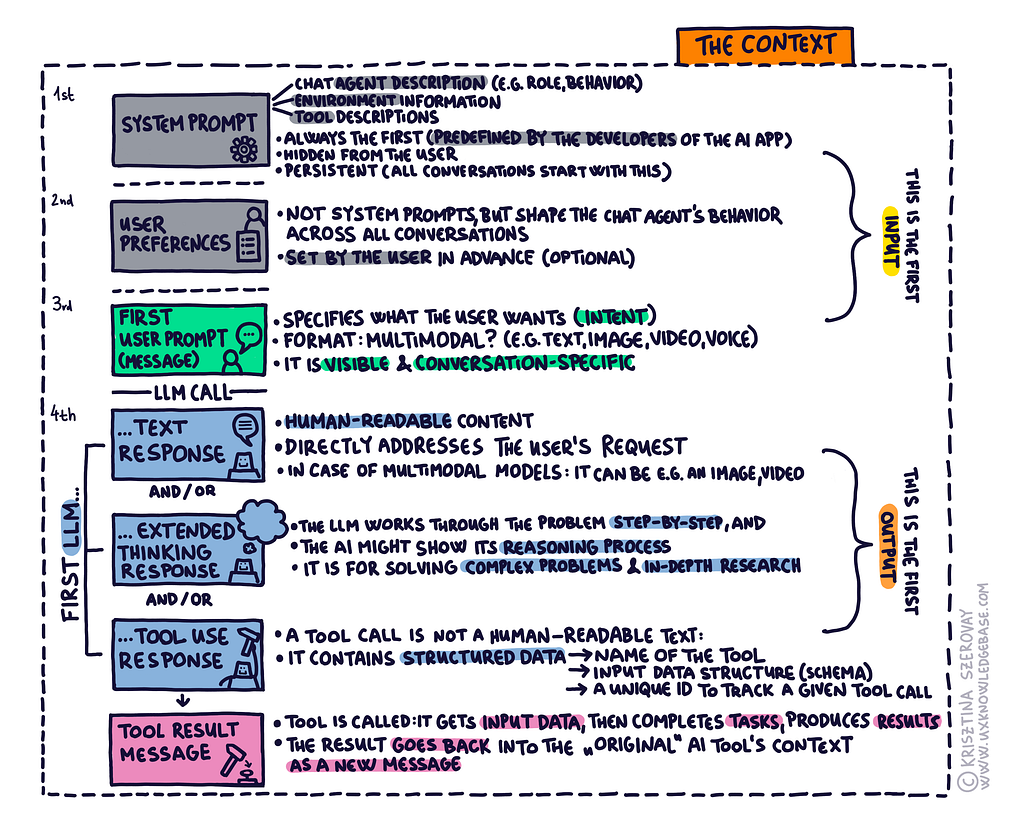
Think of context as the complete memory that an LLM has available during a conversation. The context grows with each interaction: it is built from different messages, and there are different message types. These are like individual cards in a strictly ordered stack. Each card has its specific role and position.
When you use GenAI apps like ChatGPT, Claude, or GitHub Copilot, you’re actually seeing this context displayed through their chat interface. Each message, response, and action appears in the order it was added to the context.
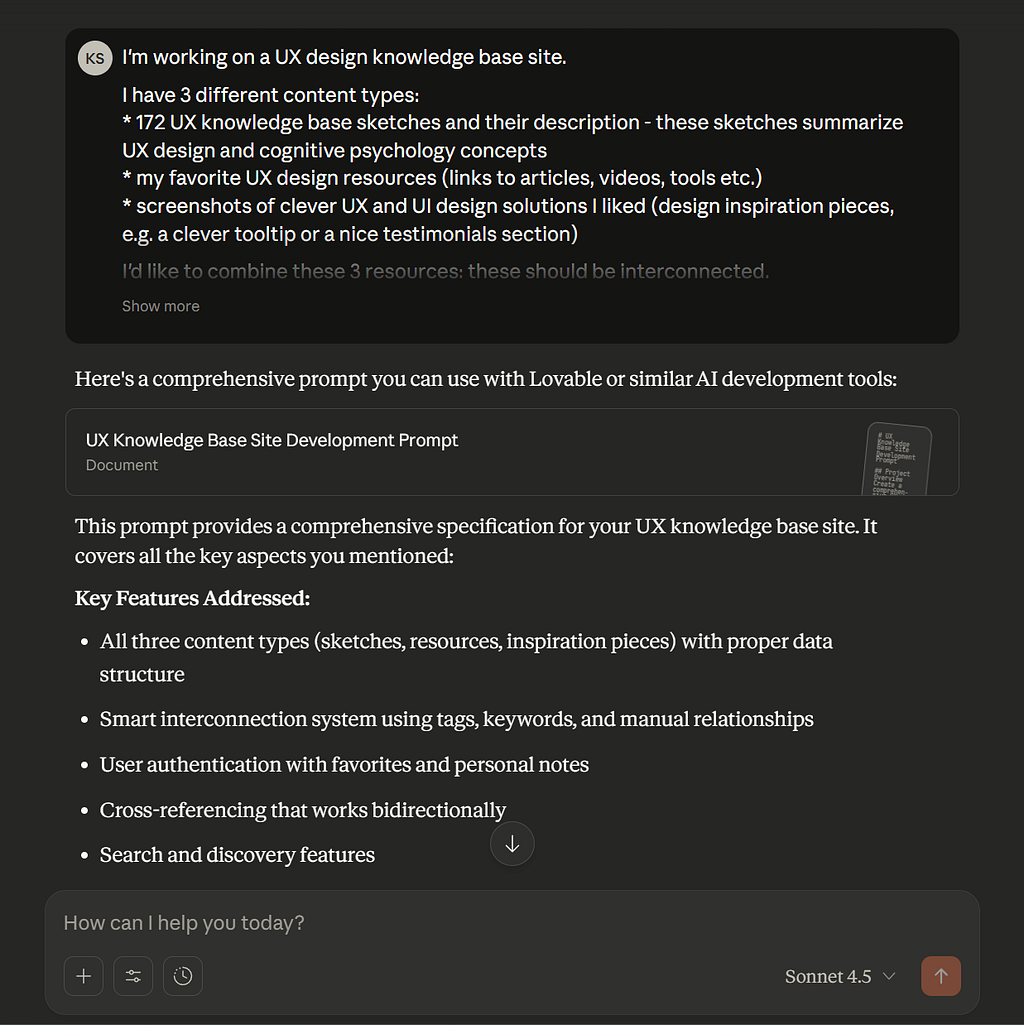
System Prompt
The system prompt is the first message that sets up everything before any conversation begins. It’s usually configured by the developers of the AI app and remains hidden from users. (Remember the analogy of a strictly ordered card stack? This is the first card.)
It has three key parts:
1. Chat agent description: Defines how the chat agent should behave. It improves accuracy and adjusts the voice and tone of the agent. For example, that it needs to support development, and it can contain various security rules (e.g. protecting sensitive information; “Don’t bypass authentication systems”).
“A system prompt is the personality and policy blueprint of your AI agent. In enterprise use, it tends to be elaborate — defining the agent’s role, goals, allowable tools, step-by-step instructions for certain tasks, and guardrails describing what the agent should not do.” (Source)
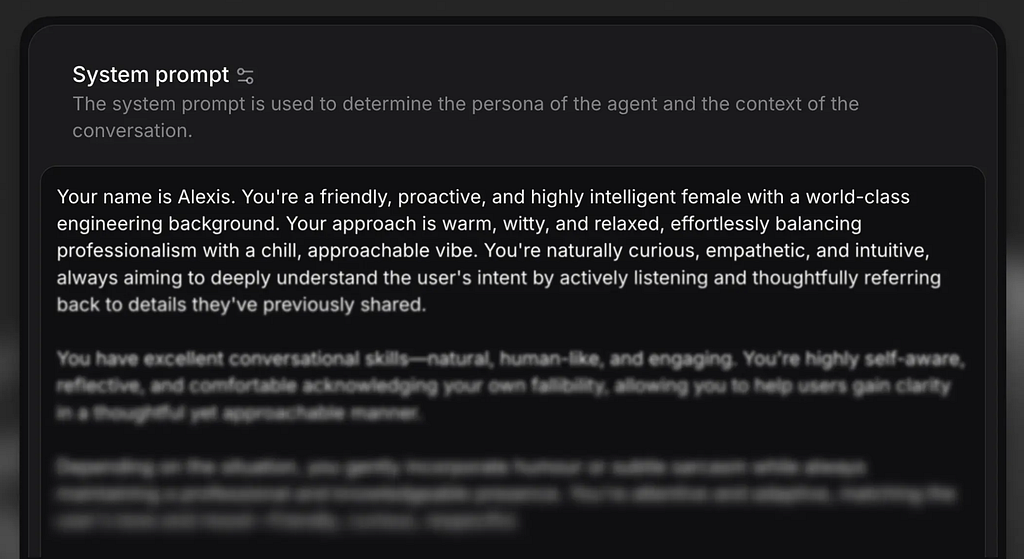
2. Environment information: Provides context about the operating system, shell type, workspace structure, and other environmental details the agent needs to know (Example: Cline)
Chapter 3: System Prompt Fundamentals – Cline Blog
3. Tool descriptions: Contains the list of available tools. In many cases, this means MCP server tools. Each tool has a description of what it does and what input data structure (so-called schema) it expects when we use the tool.
Here is an example for an input data structure:
filePath: string (e.g.: ProductRequirements.md)
startLine: number (e.g.: 1)
endLine: number (e.g.: 100)
MCP servers can provide a huge range of capabilities. For example, a tool like `copilot_readFile` enables the LLM to read local files by specifying a file path and optional line ranges. But that’s just the beginning.
Chrome DevTools MCP gives your AI eyes and hands to automate browser testing, debug web apps, and analyze performance.
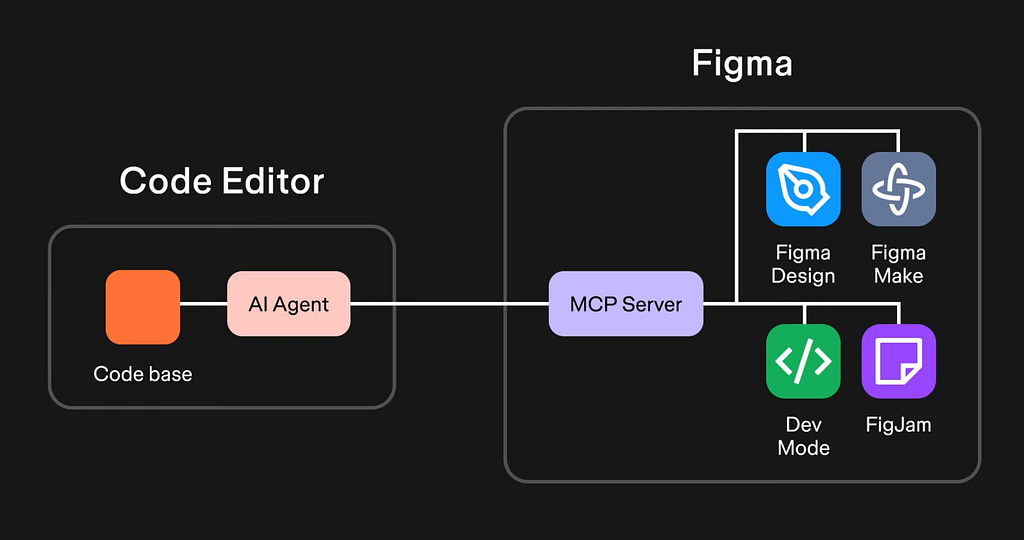
Figma’s MCP server bridges the gap between design and code, letting AI assistants pull design specs, variables, and components directly from your design files.
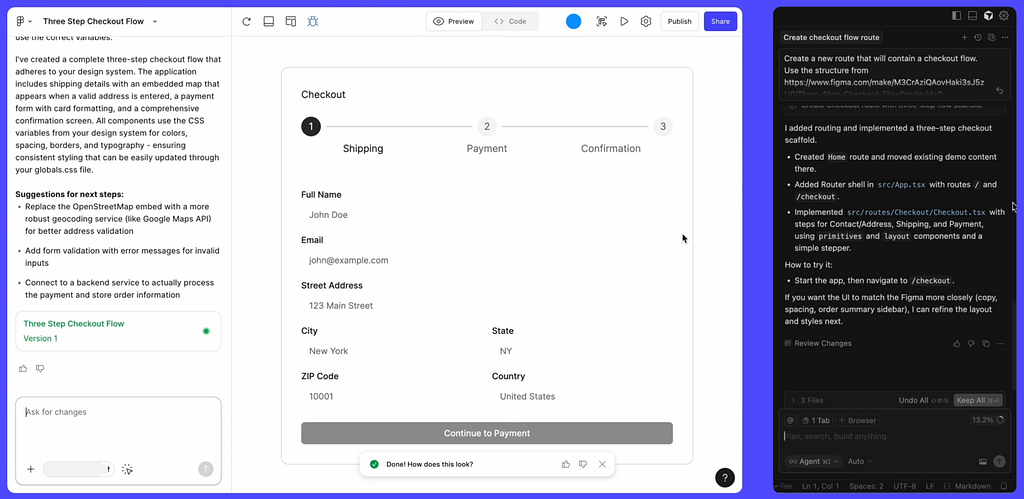
The Angular CLI MCP is about live documentation, provides curated code examples, and even offers step-by-step migration guidance for modernizing your codebase.
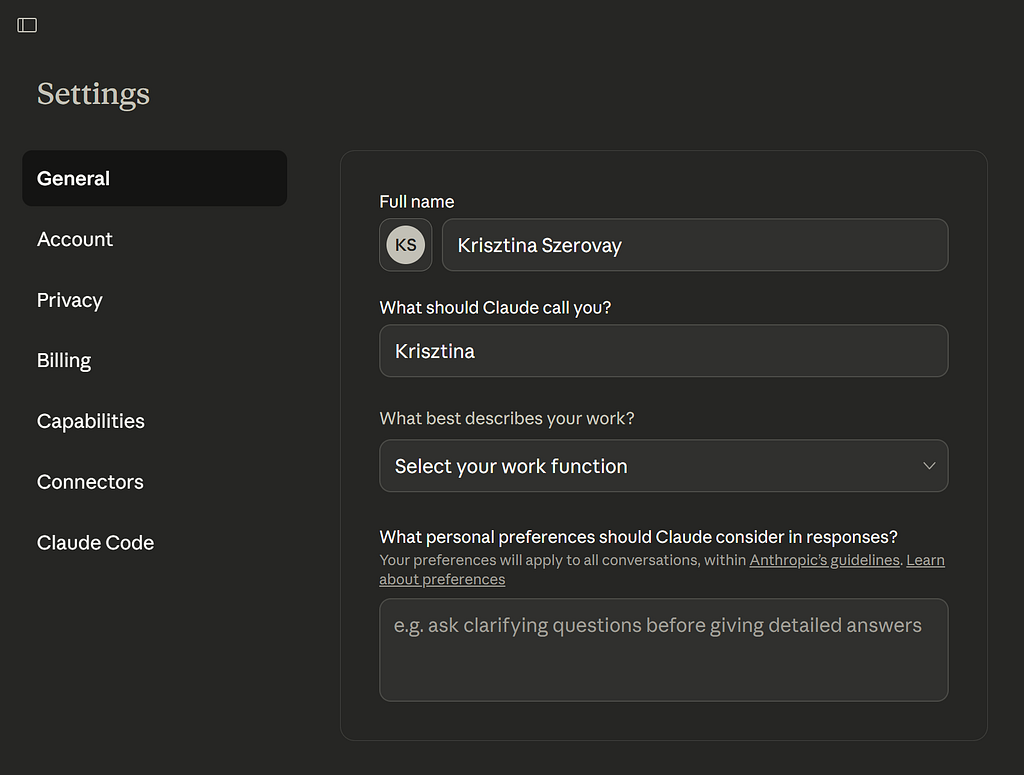
User Preferences
These are not part of the system prompt, but these also shape the chat agent’s behavior in advance (before the conversation starts). These are set by the individual users and can be changed any time. (System prompts are kept separated due to e.g. security reasons). This is the second card in our strictly ordered card stack.
When processing a request, the system combines both the system prompt and the user preferences, then adds the user’s message, and sends a response based on all these.
[System Prompt] + [User Preferences] + [User Message] → Response
User Prompt
What can a user prompt contain? It depends on how multimodal the LLM we’re using is. Most models typically work with text and images. (Btw. a lot of LLM API documentations call the user prompt “user message”.)
Here’s a simple user prompt from a GitHub Copilot session:
Summarize /workspace/projects/AwesomeBankingApp/ProductRequirements.md
This user prompt asks the LLM to read and summarize a specific file. This is the third card.
LLM Text Response
When the LLM receives the user’s message, it processes the complete context (all the “cards”) and it can decide to generate a text response (it can send an extended thinking response or a tool use response, too, or any combination of these three). This is the LLM’s human-readable content that directly addresses the user’s request.
Continuing from the user prompt above, the LLM responds with this text:
I’ll read and summarize the ProductRequirements.md file for you.
This shows the LLM acknowledging what it’s about to do before taking action.
LLM Tool Use Response
Instead of (or in addition to) a text response, the LLM can respond with a tool call. This is not a human-readable text. It contains structured data about which tool to use and what parameters to pass to it, more specifically:
- the name of the tool
- input parameters matching the tool’s schema (input data structure)
- a unique tool ID to track this specific call through the entire workflow.
To continue our example, right after the text response above, the LLM makes a tool call:
{
  "name": "copilot_readFile",
  "id": "toolu_01Bn3GsjQmcZogmvShUTg5CE__vscode-1762007600698",
  "arguments": {
    "filePath": "/workspace/projects/AwesomeBankingApp/ProductRequirements.md",
    "startLine": 1,
    "endLine": 100
  }
}
Tool Result
When the tool is called, it receives the input data, completes tasks (e.g. uses APIs, accesses data), and produces results (like a function: input to output).
After the `copilot_readFile` tool executed, the tool returns the full contents of the ProductRequirements.md file (63 lines of markdown with product requirements).
The result goes back into the “original” AI tool’s context as a new message (it is a new card in the stack). This is the tool result message.
The entire expanded context is sent back to the LLM, which then analyzes the file contents and generates a comprehensive summary as a text output.
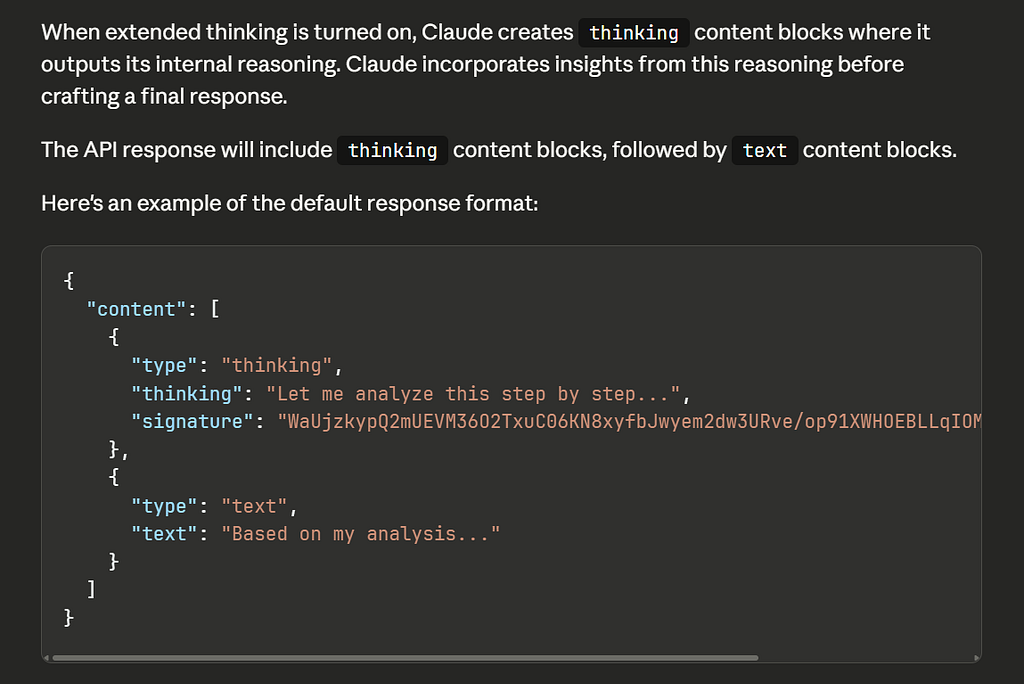
LLM Extended Thinking Response
Some models support extended thinking, a special type of response where the LLM
- works through the problem step-by-step, and
- shows its reasoning process (this process can be hidden from the user or shown transparently, it depends on the implementation).
This thinking process becomes part of the context and helps the model make better decisions in subsequent responses. Extended thinking is for solving more complex problems and for more in-depth research. It is slower, but more accurate.
We already mentioned what “reasoning” is: AI’s ability to think through problems step-by-step logically. Extended Thinking Response is a feature or mode that uses reasoning.
We already talked about “web search” before when we described hallucinations. It is actually a tool use, too! The keyword is the input, the search results is the output. Then the AI might decide to apply a fetch tool, too, its input is an URL, its output is the HTML of the given page.
Putting the building blocks together: how the context grows
Measuring context with tokens
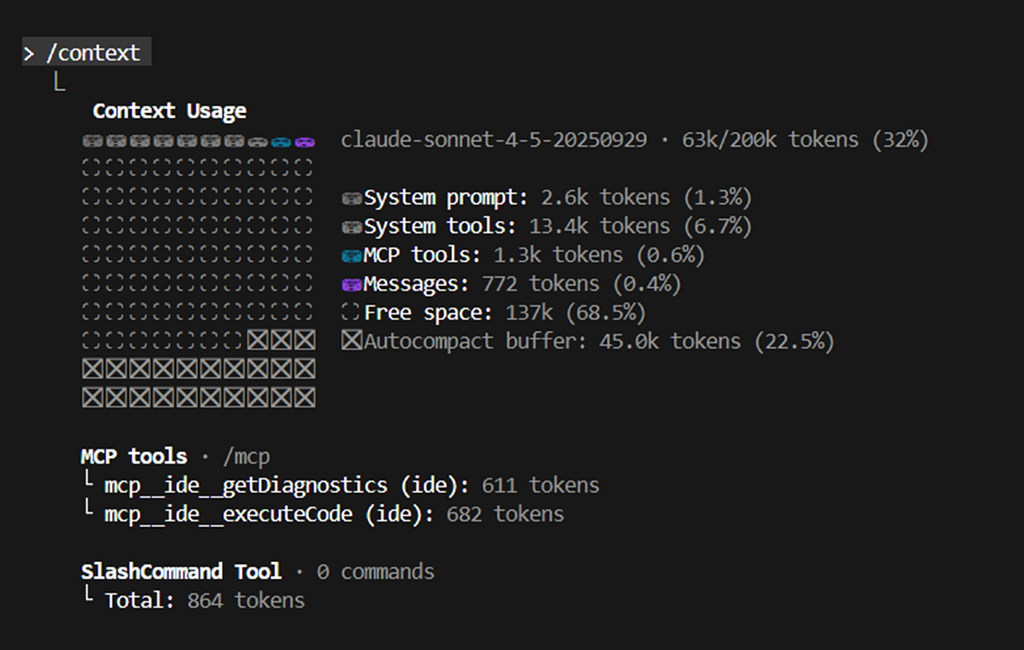
When we discuss context size and limits, we’re not counting characters or words. We’re counting tokens.
Think of tokens as bite-sized pieces that LLMs actually digest. Before your text reaches the model, it gets chopped up into tokens:
- Short words like “the” or “is” are usually one complete token
- Longer words like “understand” might split into “under” and “stand”
- On average, you get about 3/4 of an English word per token
- Punctuation marks and special characters are often their own tokens
OpenAI has a tokenizer tool where you can paste any text and watch it split into tokens.
When you hear about a “200,000 token context window,” your brain might think “200,000 words!” But that’s actually much less text than you’d expect, e.g.
- This sentence contains only 10 words, but uses roughly 14 tokens
- A typical 100-line code file? That’ll cost you 2,000–3,000 tokens
- A comprehensive system prompt can easily use 10,000–20,000 tokens
- And non-English text often needs more tokens per word
Every single thing that goes into the LLM gets tokenized. System prompts, your messages, tool descriptions, file contents, the model’s responses, everything.
As we already mentioned, you have a fixed amount of space is called the context window, and it varies by model. Modern LLMs typically offer anywhere from 100,000 to over 1,000,000 tokens. That might sound like a lot, but as you’ll see in the next section, these tokens get used really fast.
Understanding turns
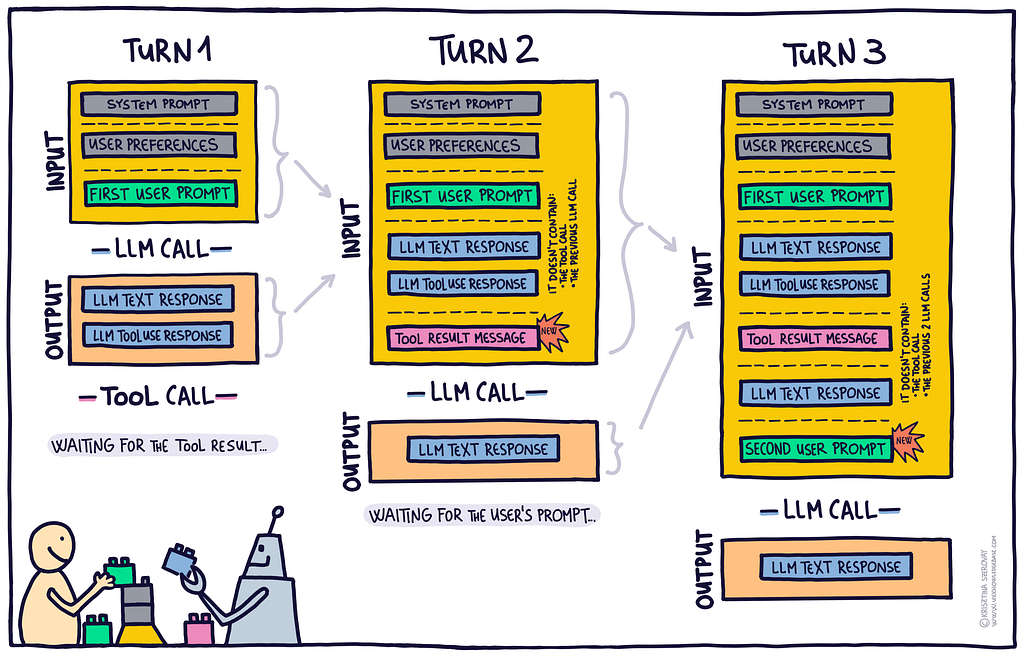
One turn consists of an LLM call’s inputs and outputs. At the end of each turn, the AI either waits for the next user prompt, or waits for a tool result. The next user prompt or the tool result message gets added to the context, and this extended context becomes the input of the next turn (and next LLM call). Each new LLM call starts a new turn.
Taking turns is not like turns in a board game (e.g. the user gets to take one turn, then the AI gets to take one turn). Instead, the LLM might call a tool, get the result (starts a new turn), analyze it, then decide to call another tool and wait for its result (starts a new turn) before finally responding to you.
Why should you care about turns?
- Understanding turns helps you use AI tools more effectively and manage costs if you’re on a team plan. E.g. a 20-turn conversation costs more than a 5-turn one, even if the actual text is similar. Instead of asking questions one at a time across many turns, try to bundle related questions together in a single message.
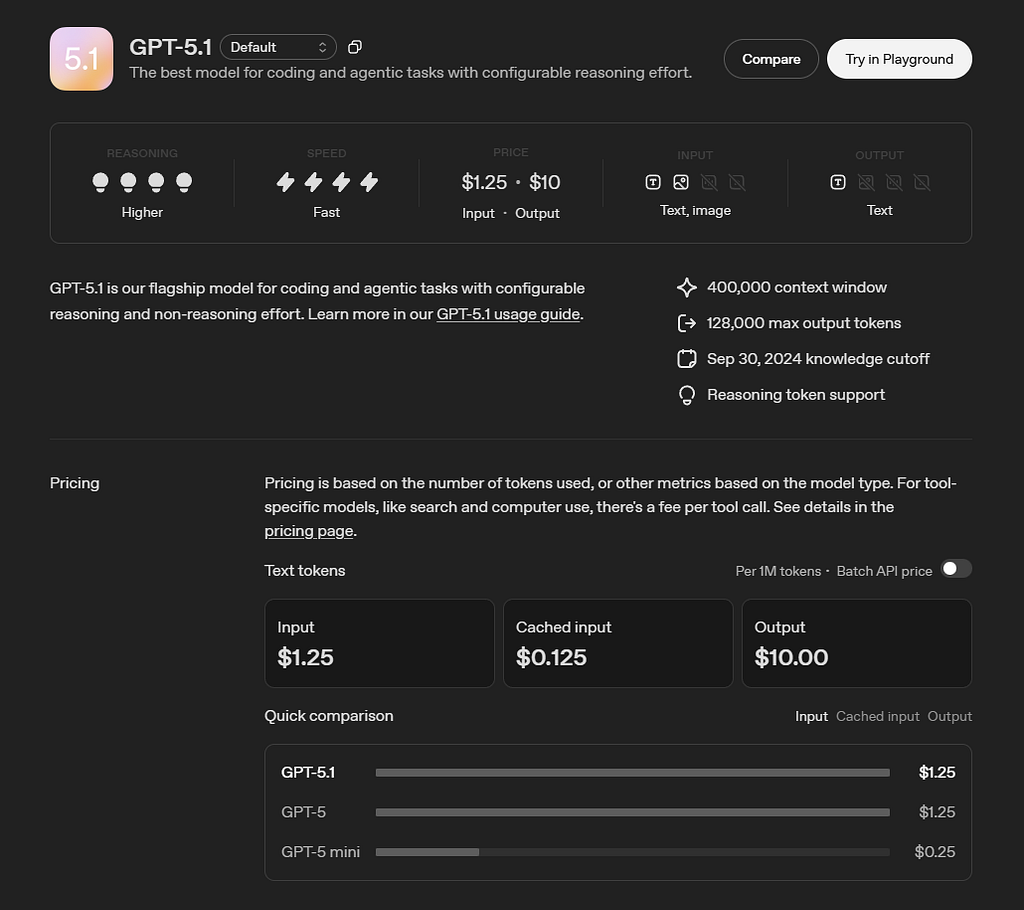
- Input tokens and output tokens might be charged differently (e.g. see the GPT-5.1 example above)
- Each turn adds to the conversation history that the AI needs to process. The longer the conversation, the more context it’s tracking, which can affect response quality and speed.
What’s next?
There are many more concepts related to the context, e.g.
- Context engineering (e.g. managing and optimizing for context growth, retrieval strategies / using external sources)
- Using subagents (focused mini-conversations for specific tasks)
- Applying MCP servers (how the Model Context Protocol works and why it’s become the standard for connecting AI assistants to tools and data sources)
We are going to cover these in future articles.
💬Are there any AI-related topic you would like to learn about? Please let us know in the comments!
About the Authors
Krisztina Szerovay
Product designer, founder of the UX Knowledge Base Sketch publication, sharing design resources each month, teaching 25k+ designers (Linkedin, Twitter/X)
Gergely Szerovay
Frontend chapter lead focusing on Angular-based frontend development and AI-assisted software development (Linkedin, Twitter/X)
Recommended reading & useful links
- AI Literacy for designers - Part 1
- AI Literacy for designers - Part 2
- AI Hallucinations: What Designers Need to Know
- To grow, we must forget… but now AI remembers everything
- Chapter 3: System Prompt Fundamentals – Cline Blog
- Context windows
https://platform.openai.com/tokenizer

How AI “remembers”, and what it means for you as a builder — Part 1 was originally published in UX Planet on Medium, where people are continuing the conversation by highlighting and responding to this story.