
If you’re looking for a fast way to create a nice presentation, the right approach is not to start from scratch. Instead, use AI tools to create a first draft and refine it.
Gamma is one of the fastest ways to turn ideas into presentations, documents, and mini-websites, but the difference between average and great results usually comes down to how you structure your input and orchestrate the first key edits.
In this article, you will find the top 5 simple tips that will help you make the most of Gamma.
1. Start with an outline, not a topic
Creating a proper context for an AI tool is the first and most important step you need to take to maximize AI results. The better context you create, the more relevant the output will be.
Thus, instead of writing a general idea of your slide deck:
Create a presentation about AI agents
Write a very detailed specification that will cover both content & format:
Create a 15-slide presentation about AI agents.

Audience: Product designers.

Structure:
- What are AI agents
- Agentic workflows
- Common mistakes
-- Real-world examples
- Future trends

Tone: Educational and practical.
Ready-to-use template for outline:
Create a presentation.

Audience:
[Audience]

Goal:
[Goal]

Number of slides:
[Count]

Structure:
[Outline]

Visual style:
[Style]

Include:
- Diagrams
- Frameworks
- Examples
- Actionable recommendations

Avoid:
- Generic statements
- Excessive text
- Stock-photo style visuals

Tone:
Practical, concise, expert-level.
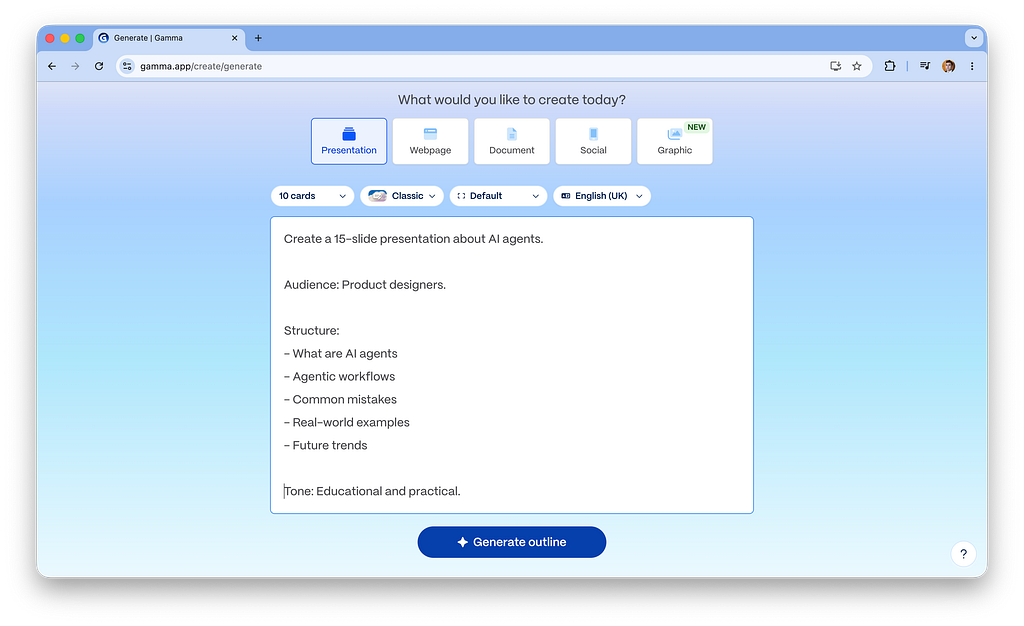
And hit “Generate outline” to draft a structure for your future slide deck.
2. Provide Visual References BEFORE generation
The next thing you need to do after you generate the outline is to define the look & feel of your presentation. No matter how good your content is, if you choose the wrong visual style, your slide deck won’t resonate with your audience. Thus, it’s better to do 3 things:
- Think about what visual language you want to use for the slide deck.
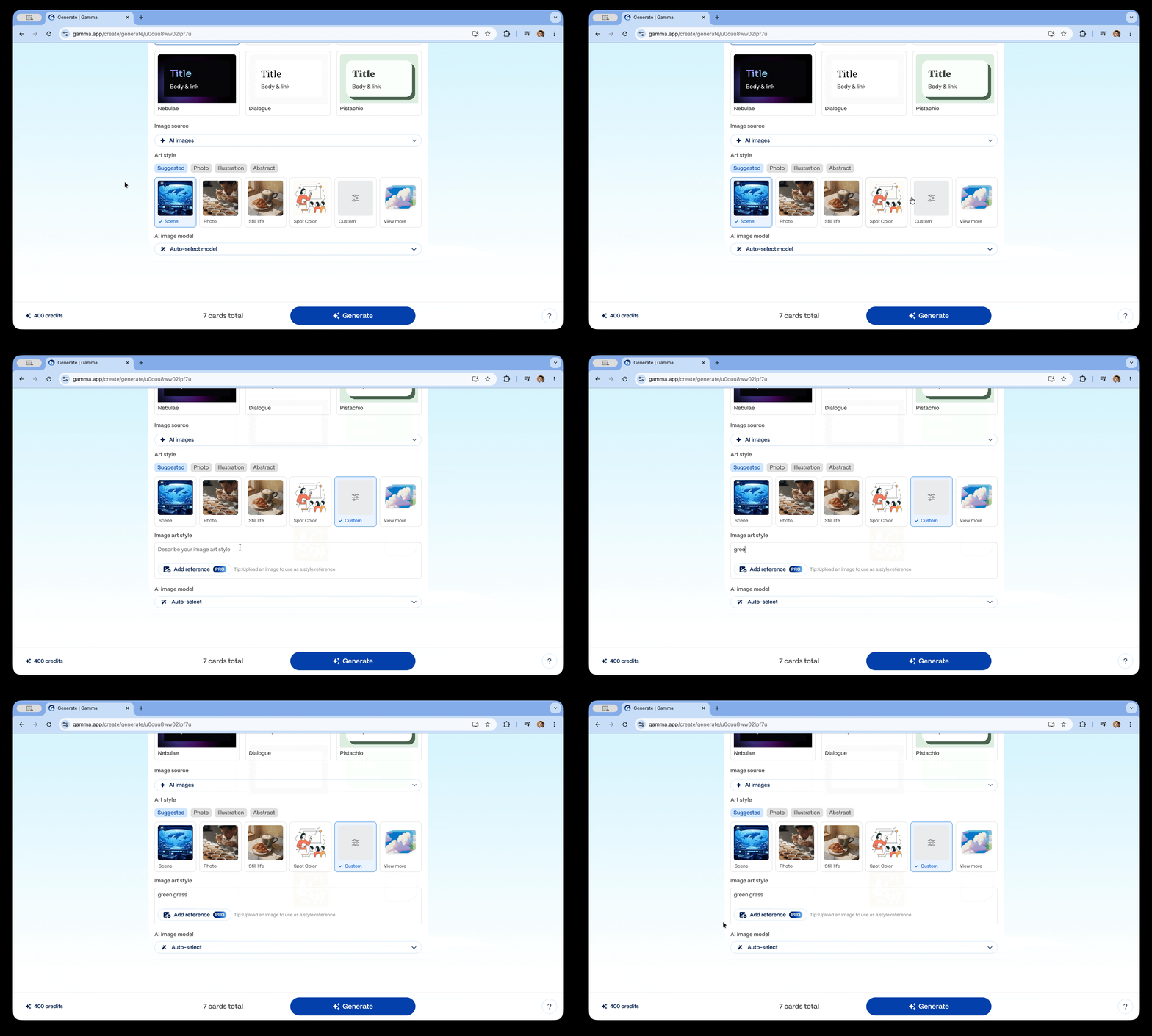
- Articulate the main visual attributes of this language in a format of short sentences.
- Provide these details to Gamma as a Image art style.
3. Treat the first output generated by AI as a first try
One of the biggest mistakes people make when working with Gamma is that once the tool generates the output, they start refining it. The problem with this approach is that the output might be far from what you had in mind when you prompted the AI.
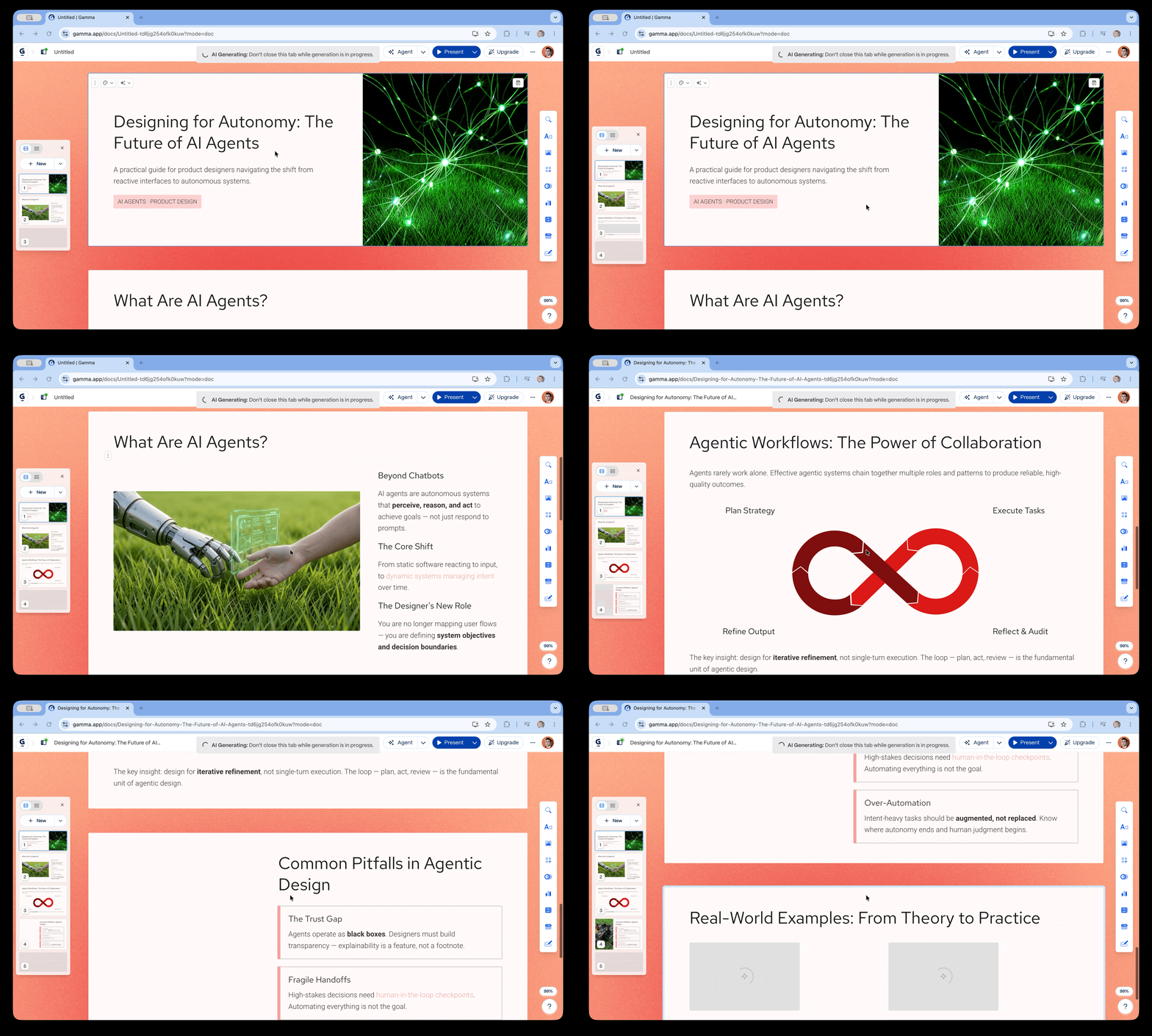
As a result, the time required to modify the design might be significant. So instead of running through multiple iterations with AI, it’s better either to navigate back to the outline screen & do a few tweaks there or use Agent editor to introduce a global change:
Add custom design instructions in your original prompt
If you don’t like colors, illustrations, typography, or spacing, you can ask AI to change that right in the prompt window:
Use a minimalist visual style.

Large typography.

High contrast.

Minimal decorative elements.

Focus on clarity over visual complexity.
or you can choose to edit the Theme of a generated slide deck:
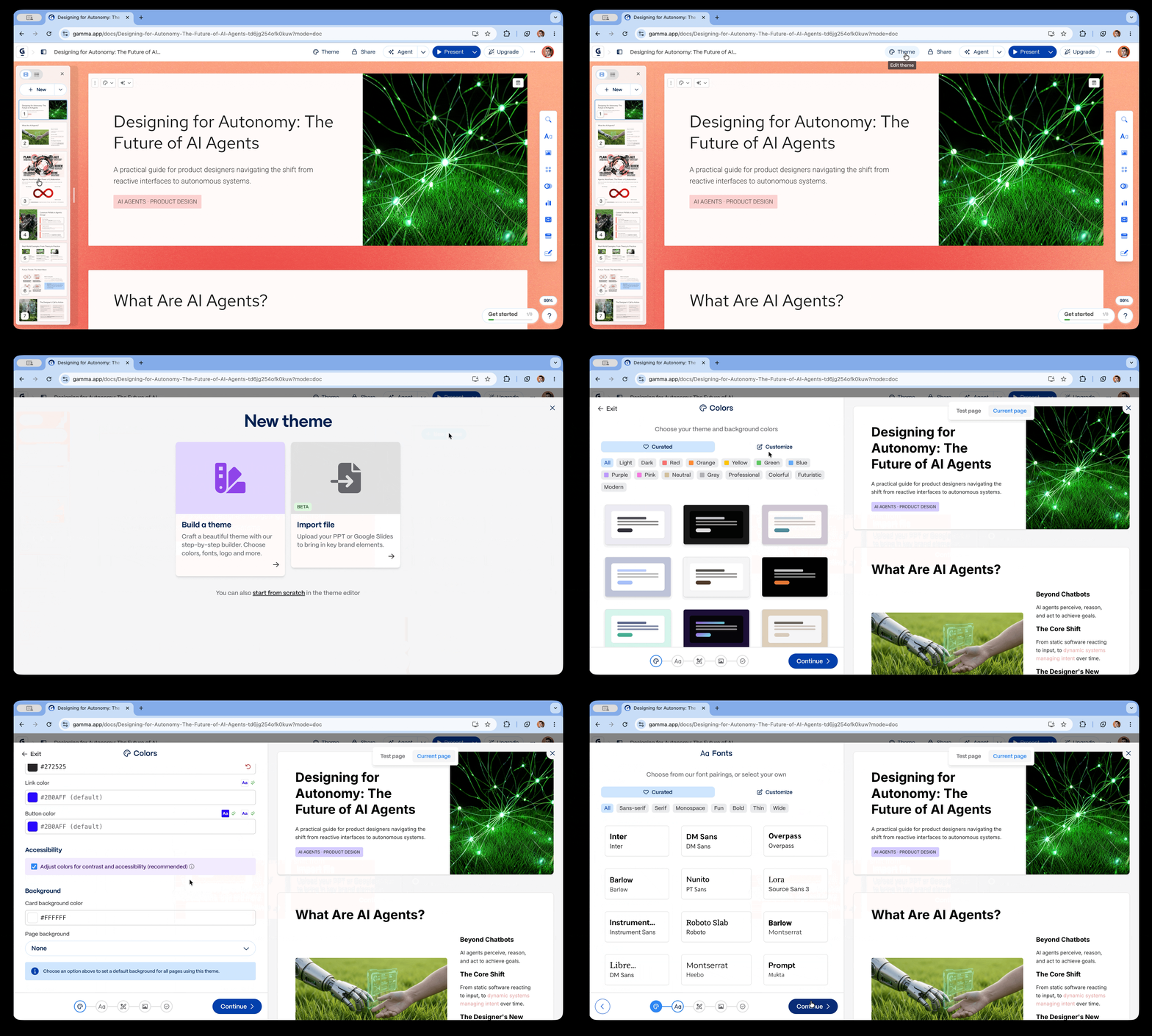
This works much better than trying to tweak a generated slide deck.
Use “What Should Be Visualized?” instruction
The nice thing about Gamma is that the tool will make informed decisions about what to visualize and what to keep as plain text based on the context. Plus, you can select a particular section and turn it into a visual.
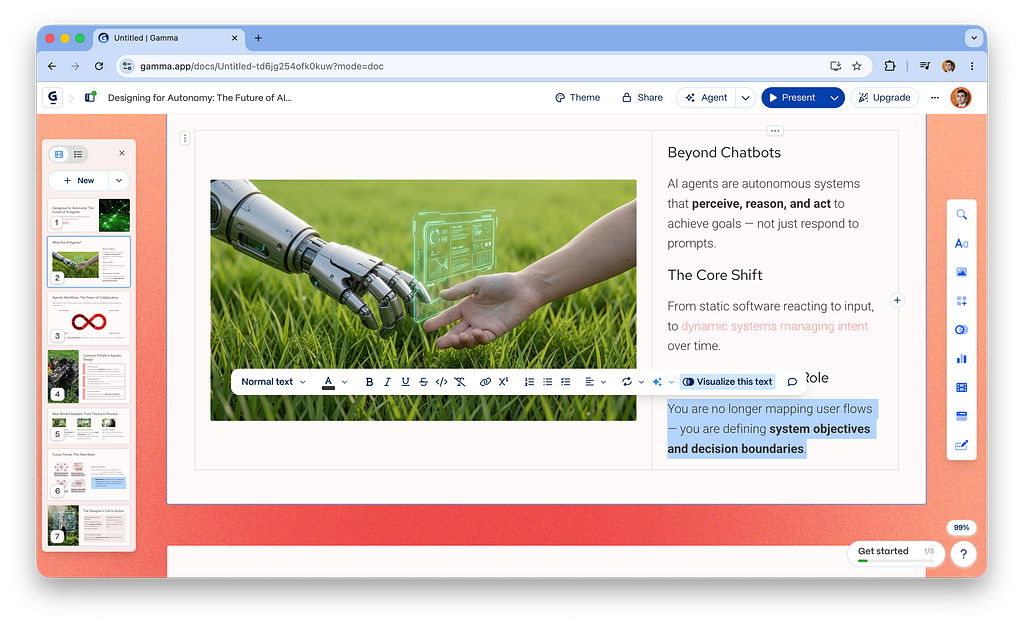
But the downside of this approach is that in both ways, you still rely on AI to make the first move.
Instead of making AI guess what should be visualized, it’s better to provide this up front
For each slide, recommend the most effective visualization:

- Diagram
- Comparison table
- Timeline
- Process flow
- Framework
- Chart
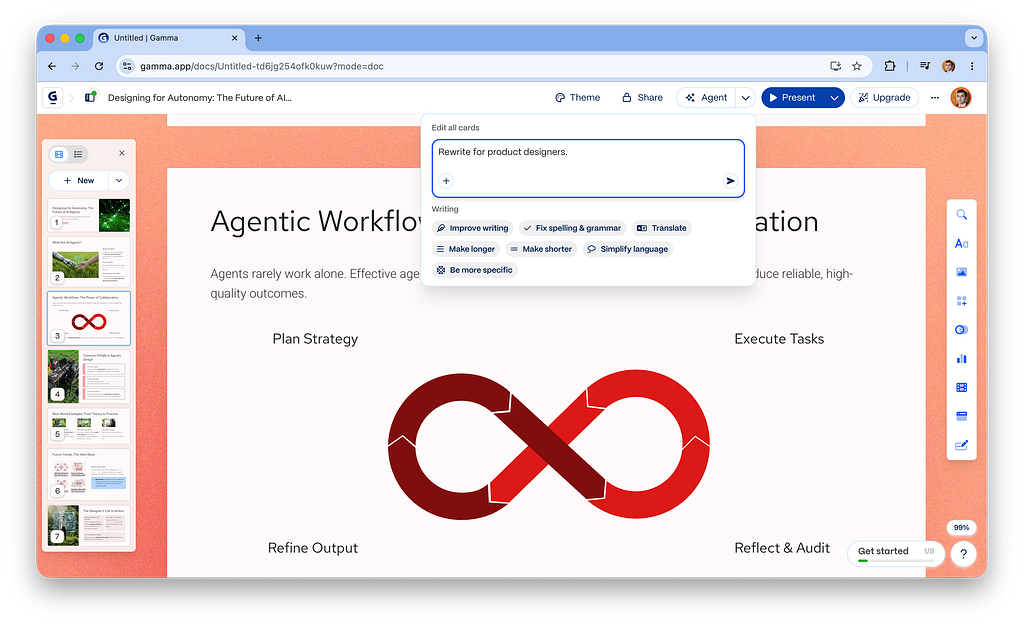
Adjust the slide deck for your specific audience
Think about who your slide deck is designed for. Your audience matters a lot, as people from different fields have different preferences for information. Without explicit instruction, AI will make an informed decision about your audience, but, again, this might not be relevant to your actual situation.
Rewrite for executives.

Rewrite for engineers.

Rewrite for product designers.
3. Don’t make people read
This might not seem counter-intuitive, but people rarely read content. Instead, they scan it.
People don’t read; they scan.
This means that the more text you add to your slide deck, the lower the chance that people will read it and comprehend it. That’s why it’s always a good idea to audit your text and:
- Get rid of all unnecessary text blocks.
- Optimize remaining text sections.
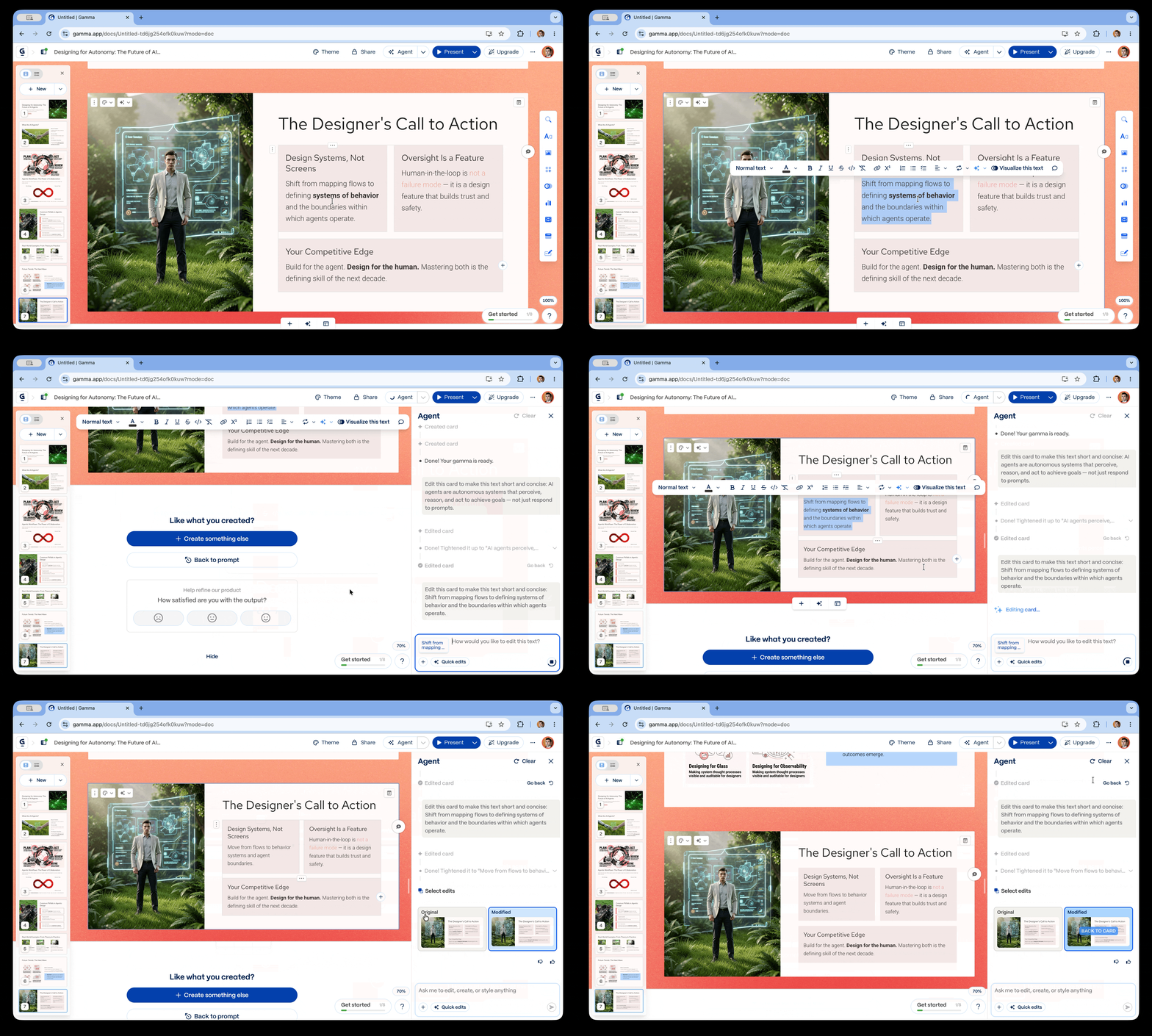
Gamma has a dedicated tool that allows you to condense text sections. Simply select the section, click on the AI button in the contextual menu, and choose Condense text.
5. Add infographics
People are visual creatures; we love visuals more than text. A nicely crafted infographic increases the chances that readers will at least scan it.
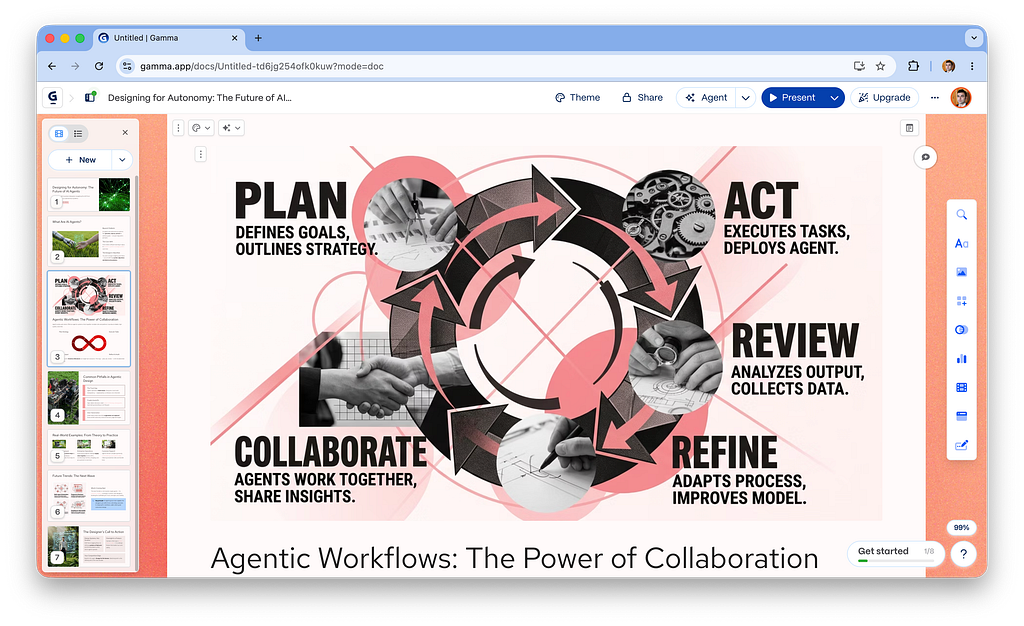
The process of creating infographics in Gamma is seamless: all you need to do is click Images → AI infographics, and Gamma will even prefill the prompt for the infographics based on the current context.
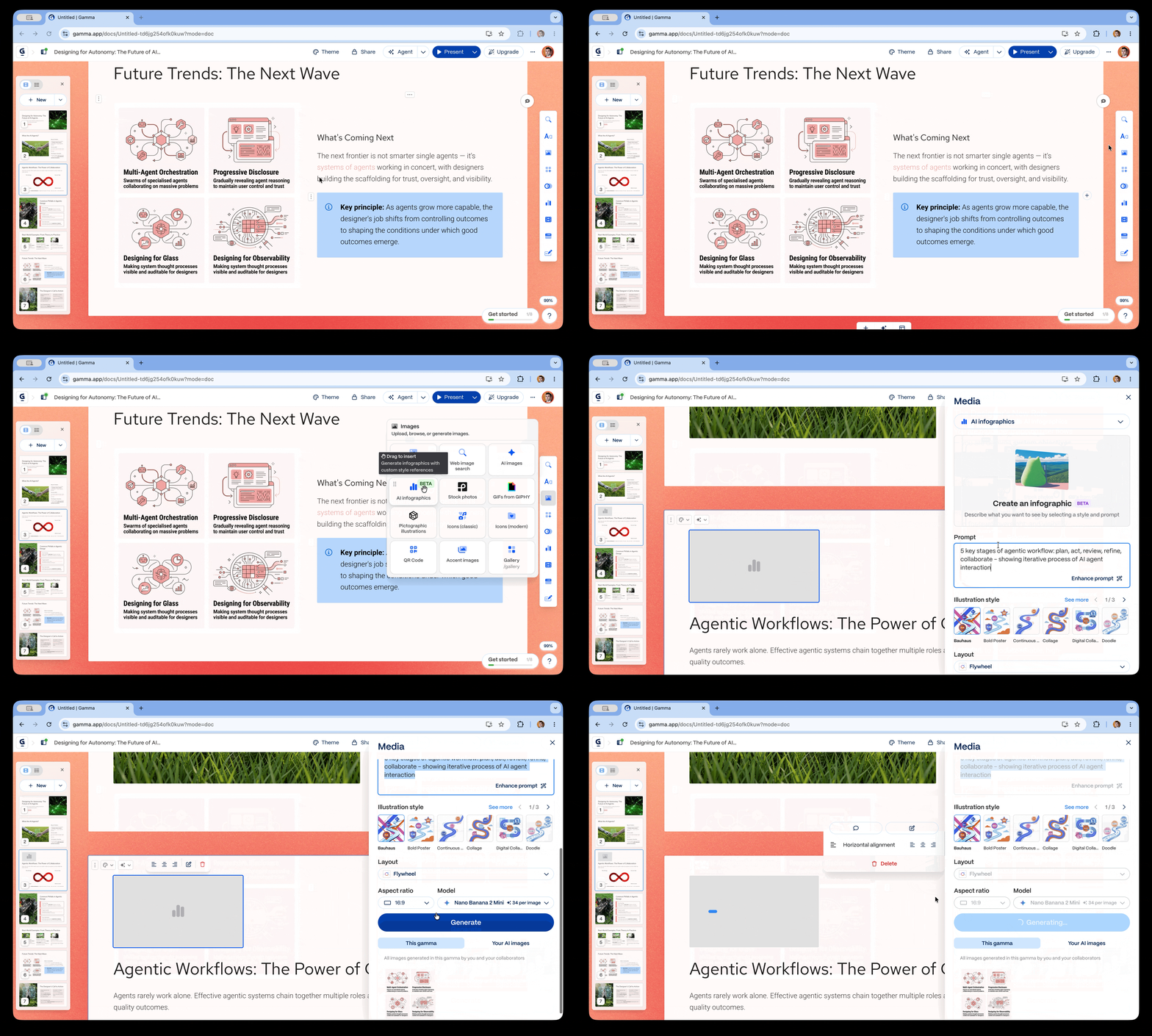
And here is what you can expect to see from AI-generated infographics:

Gamma AI Presentation Maker Tips & Tricks was originally published in UX Planet on Medium, where people are continuing the conversation by highlighting and responding to this story.